Audio tracks
To insert an audio track into your project, right click on the sidebar of of the timeline, and click [Add audio track].
To open the tempo editor, you can right click on an audio file, and click [Edit tempo and signature].


To view and edit the track's settings, we open up the left sidebar, by clicking the sidebar icon at the top left of the window.

By selecting the tracks, we can view and edit the track's settings. We change the name and the color of the track.

By default, a new audio track's audio output is 'Stereo 1/2'. When we click the audio output, we can see the audio ouputs to choose from.

Audio preferences
In this case, we have not yet configured the audio settings for the application yet, so there are no options.
If there are no options available, or an audio output that was present before isn't anymore, the setting will remain, and it will pick up the audio output as soon as it is available again.
To open the audio preferences window, we click [Myelin Director] -> [Preferences] in the menu bar on macOS, and [File] -> [Preferences] in the menu bar on Windows.

Here, you can select the audio output for the audio tracks, and audio input for the SMPTE LTC timecode input. You can also choose your preferred sample rate and buffer size.
Please note: video files in Myelin Director are played using the OS's native video player. The audio of the video is therefore routed through the OS's selected audio device as well. For several formats, you can load the video on an audio track as well, to have control of the audio outputs.

When you have selected an audio output device, they will show up in the audio track's audio output settings.
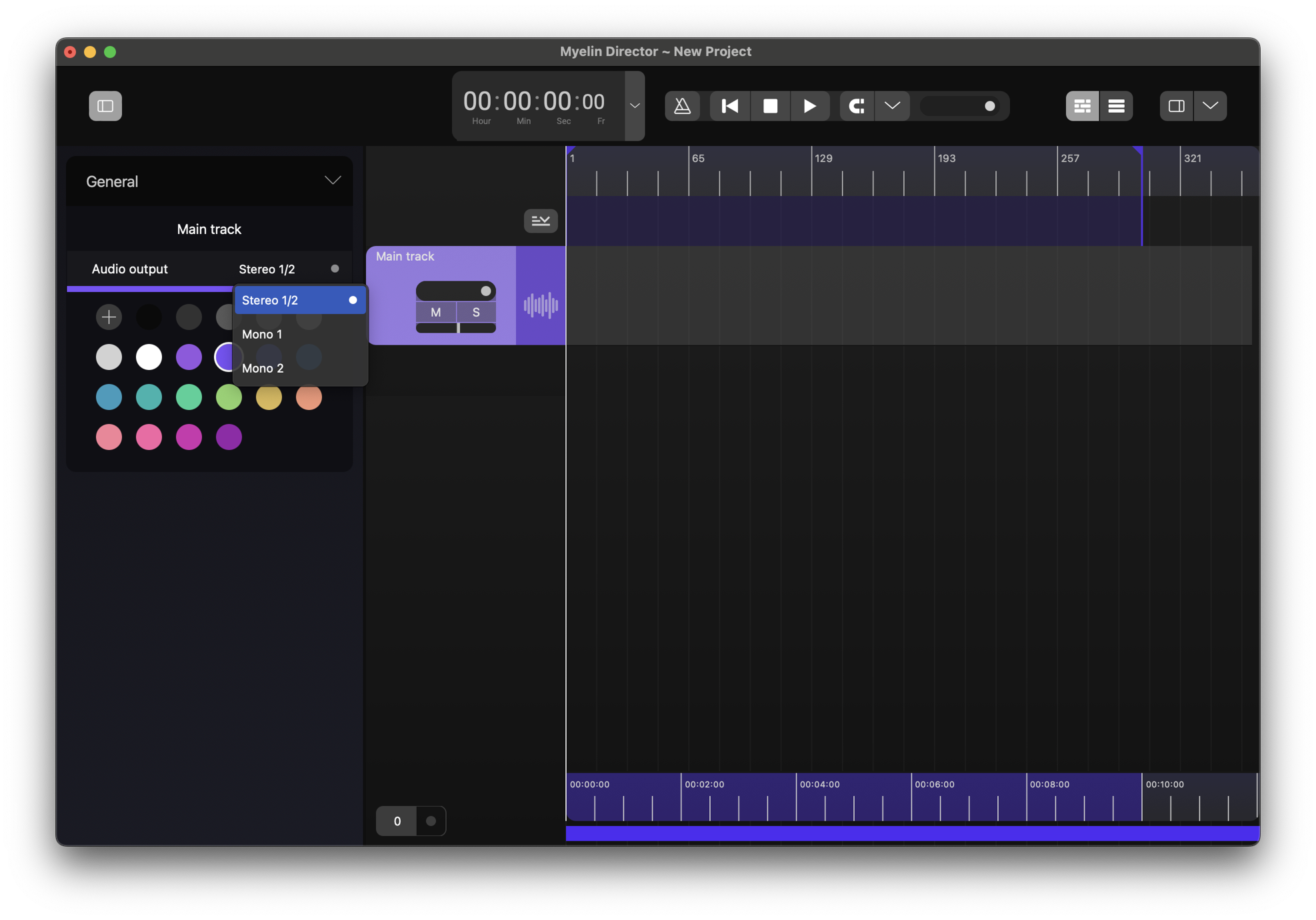
You can import an audio file to the track by right clicking at point you want the audio file to start and click 'Add audio file', or by dragging and dropping an audio file onto the track.
For this guide, we will use an .WAV audio file, that contains tempo data, exported by Logic Pro.
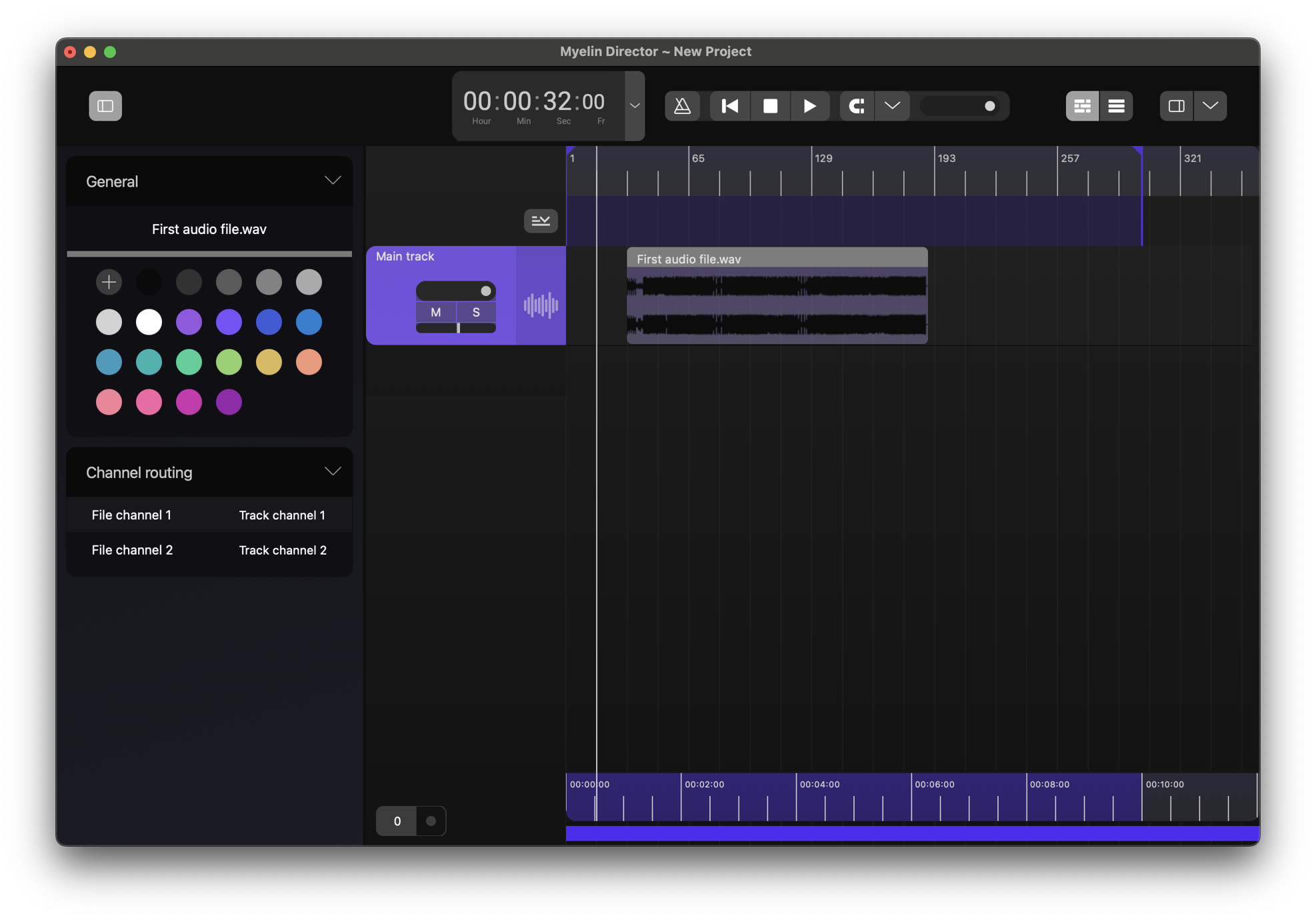
We can change the name and the color of the file, as well as the channel routing. By default, the channels are routed one-to-one for a stereo track, and do not need to be altered. The volume and panning of the track can be altered on the track strip, where you also find the mute and solo buttons.
Apply the audio file's tempo to the project
To view the signature and BPM information of the project, you can unfold the 'special' tracks section of the timeline, by clicking the button at the top right of the track strips.

You can alter the project's tempo and signatures directly, by creating BPM points and signature sections in the Tempo track and Signature track, by importing a MIDI file's data, as well as by editing an audio file's tempo and signature data.
To apply the audio file's tempo to your project, use the Tempo editor.
