Video Switcher
As of version 1.4.0, Myelin Director is capable of switching Blackmagic Atem switchers. More switcher types will be supported in upcoming versions.
In this example, you will learn how to setup a video switcher track, and connect it to your ATEM switcher, and show the shot instructions to the camera operators using Myelin Client.
We start with a an empty project.
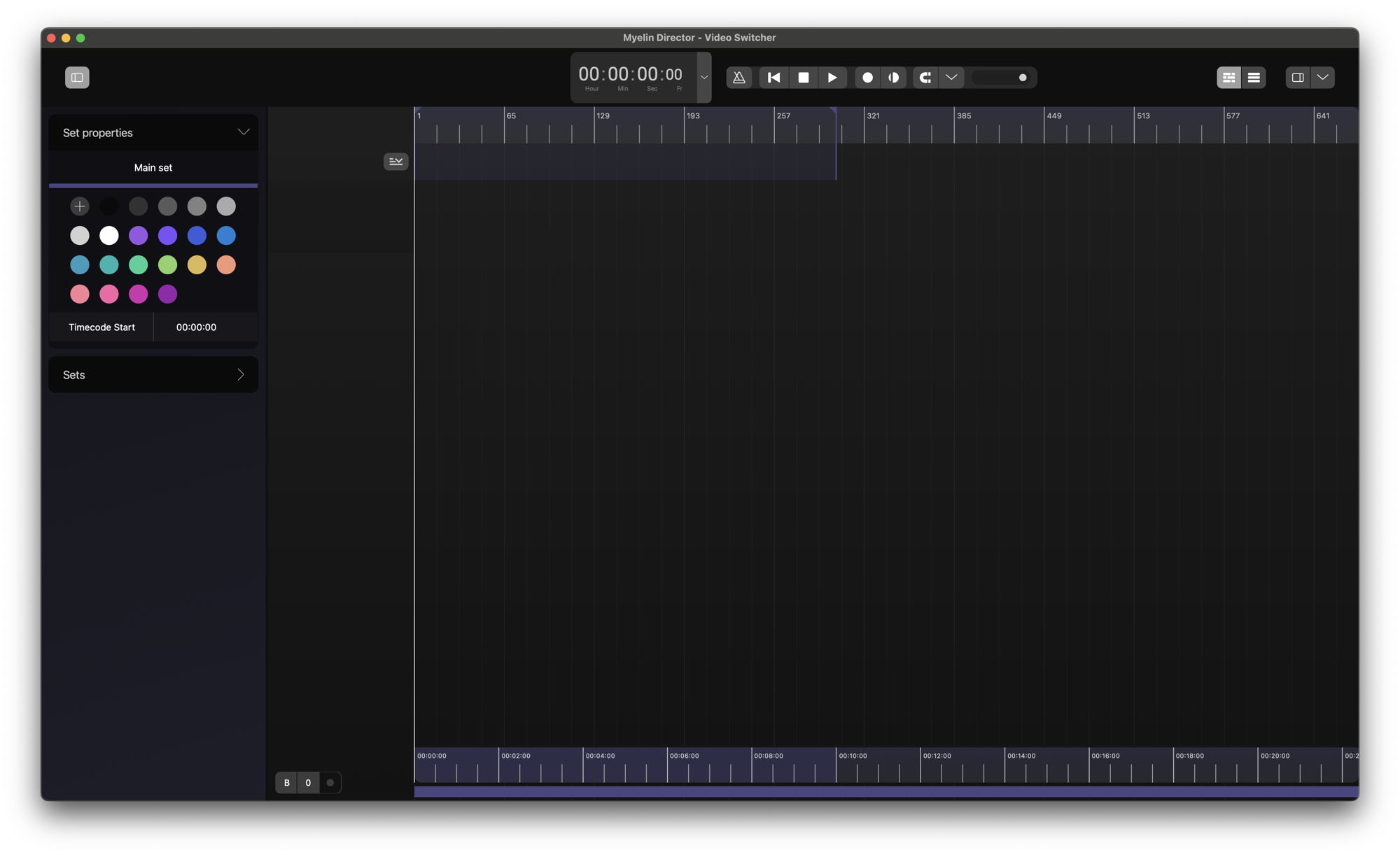
We add a video switcher track.
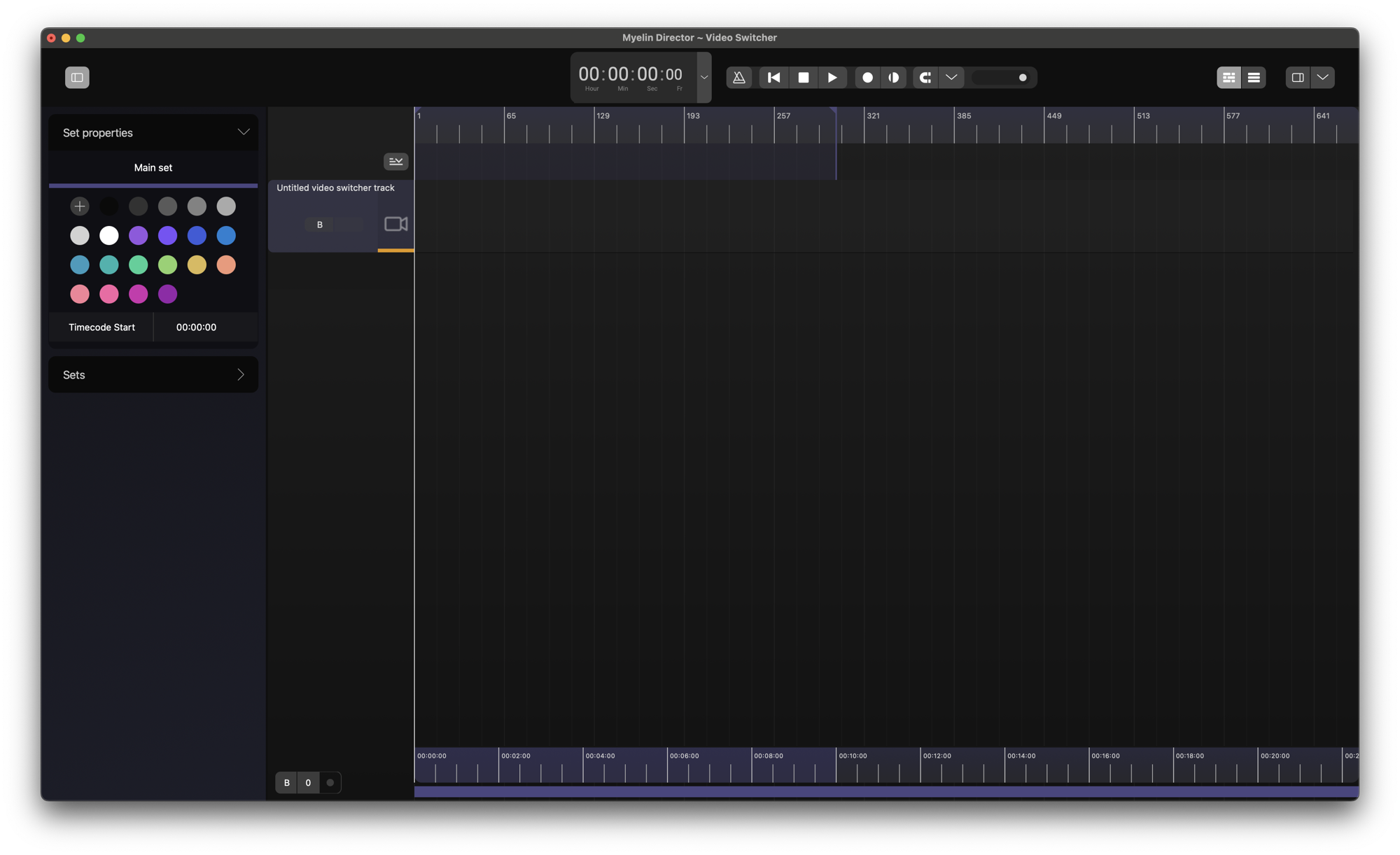
The orange bar under the camera icon, indicates that Myelin is not connected to the switcher.
We open the video switcher configuration, by clicking Options and then Video switcher options in the menu bar.

We select the switcher type, enter the switcher's IP-address, and click Enable switcher. If everything is setup correctly, the Enable switcher icon, as well as the bar under the camera icon on the track, should turn green.

We add the sources we want to use. Every source can be labeled, given a default shot, a destination, and a color.

Now that the switcher is setup correctly, we return to the timeline. In the left sidebar, we select the output and input for the switcher. The output is the M/E or AUX we want to control on the switcher, the input can be used to record events. This switcher only has a single M/E, so we use the same M/E 1 for both inpput and output.
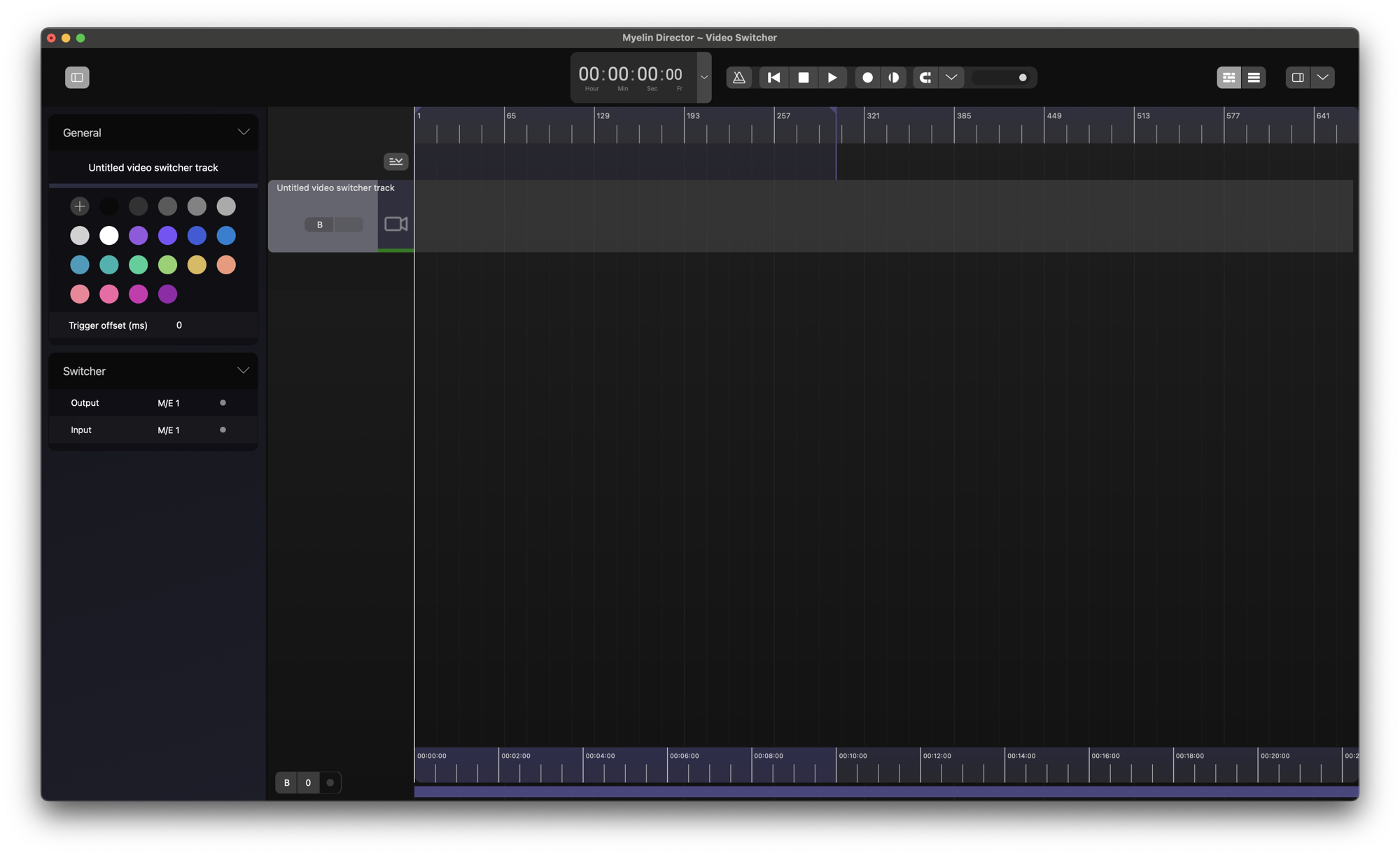
If your switcher has multiple M/E's, is might be convinient to use a different input and output. For example, if M/E 1 is your IMAG, you can let Myelin take control over M/E 2, and use M/E 2 as the source for M/E 1 when the automation is enabled. If you want to override Myelin's automation, you can simply select another source for M/E 1, and reselect M/E 2 as source to go back to using Myelin's automation. In this scenario, you would probably like to record M/E 1 intstead of 2.
You can insert shots on the track, by pressing [Shift + R]. You can change the shot's properties by selecting the shot and editing it in the left sidebar, or by double clicking the shot. Double clicking the shot, while holding [Shift], selects all shots with the same source. You can then edit all these shots at once.
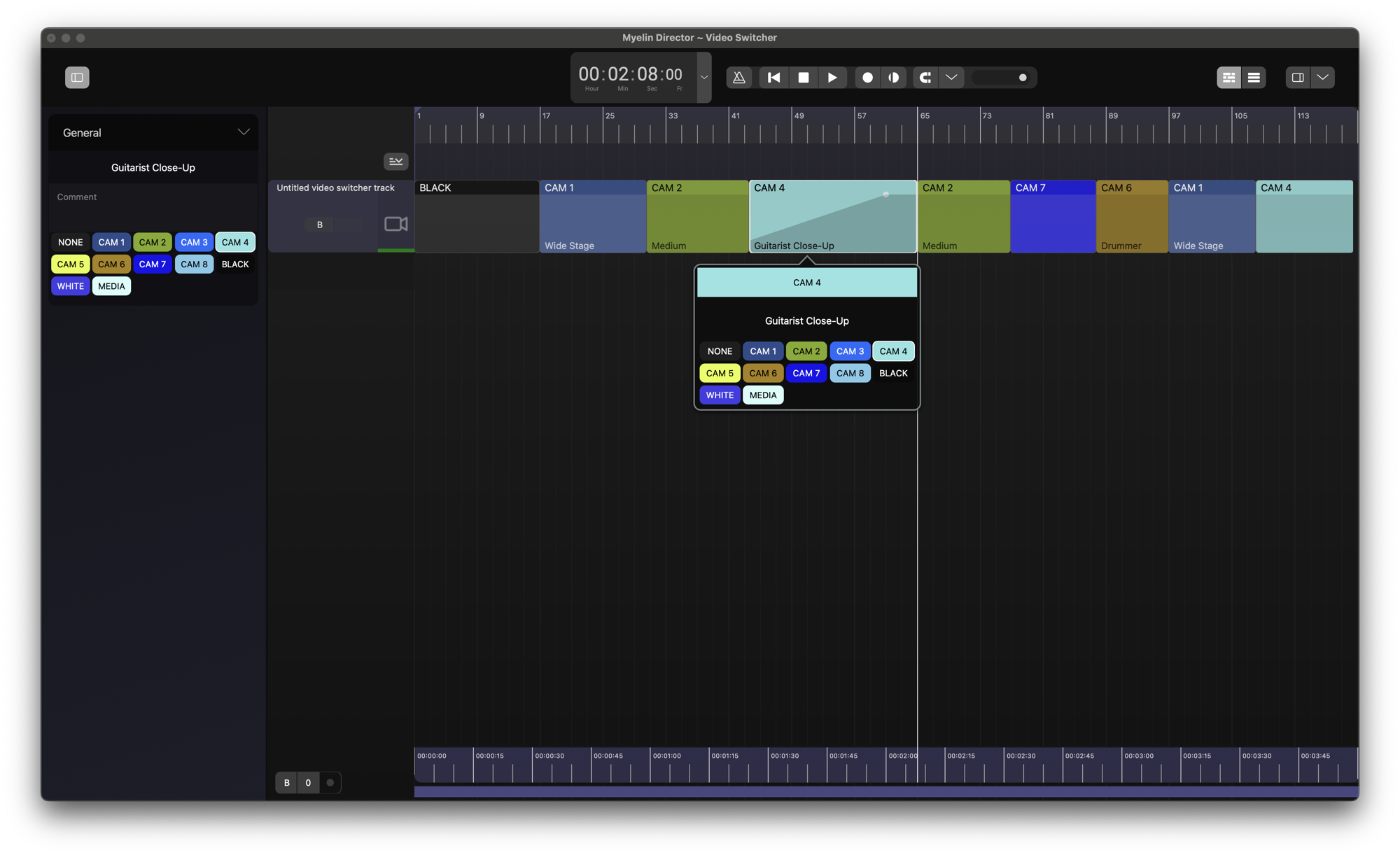
Shots can also be recorded by making changes on your switcher. Make sure the timeline is armed for recording by clicking the online/offline record buttons in the transport bar.

Now that we have created our shots, we can start playback. To give the camera operators the information about the timings and instructions of their shots, we start a Myelin Session. More information about how to do this can be found here.

When be start playback in Myelin Director, Myelin Client and your ATEM switcher reflect Myelin Director's state.


Several video switcher settings can be controlled over OSC. More information about how to do this can be found here.