Myelin Client
To keep everyone involved in your show up to date, Myelin Director comes with a built-in Myelin Client. This client can be opened in any browser, or you can download the native applications for macOS, Windows, and iOS.
We start with a project that contains the camera notes, as created in the Triggers, along with a note track, containing the song parts.

In this manual, the following topics are covered:
Start a Myelin Session
To open the Myelin Client settings, we can open Preferences and click the Session tab, or we can click the dedicated Myelin Session button at the bottom left of the timeline window.

We enable 'Host Myelin Session' to start the Myelin Session. We can also select a specific network adapter if we want to.
A Myelin Studio license restricts Myelin Sessions to localhost access only (i.e., 127.0.0.1 connections).

The previously grey indicator next to the Myelin Session button now turns orange.

Connect to a Myelin Session
We can now connect to our Myelin Session. There are various ways to open a Myelin Client and connect to the Myelin Session:
There are several ways to open Myelin Client:
- From Myelin Session settings
- Click 'Open client in browser' to launch Myelin Client in your default browser.
-
Click 'Open QR' to display a QR code. Scanning this QR code with a mobile device opens Myelin Client in the device’s browser.
-
Manually via browser
Open a browser and enter the following in the address bar:
IP_ADDRESS:51561
- Replace
IP_ADDRESSwith the IP of the machine running Myelin Director. - If Myelin Session is set to 'All adapters', you can use any local IP address that allows the client device to reach the host.
- If Myelin Director is running on a computer with IP address
192.168.1.12, and your client device is connected to the same local network, enter:
http://192.168.1.12:51561- If you're opening the client on the same machine as Myelin Director, use:
http://127.0.0.1:51561
- Using the Myelin Client app
Download the Myelin Client via the App Store or from our website. Myelin Director broadcasts its session info to the selected network adapters. If the device running the Myelin Client app is on the same network, the session will show in the sessions list, and you can connect to it.

The indicator next to the Myelin Session button now turns green, and the button reads '1', the number of Clients connected.

Use Myelin Client
When connecting to a new project for the first time, all views will be empty at launch.

For this example, we are going to configure the Client to be used by camera operator 2.
We first set up 'View 1' to show all camera notes. We open the first view's settings, by clicking the 3 bars icon at the top right of the view.

We select all camera tracks, and change the view's name to 'All Cameras', and click 'Close'.
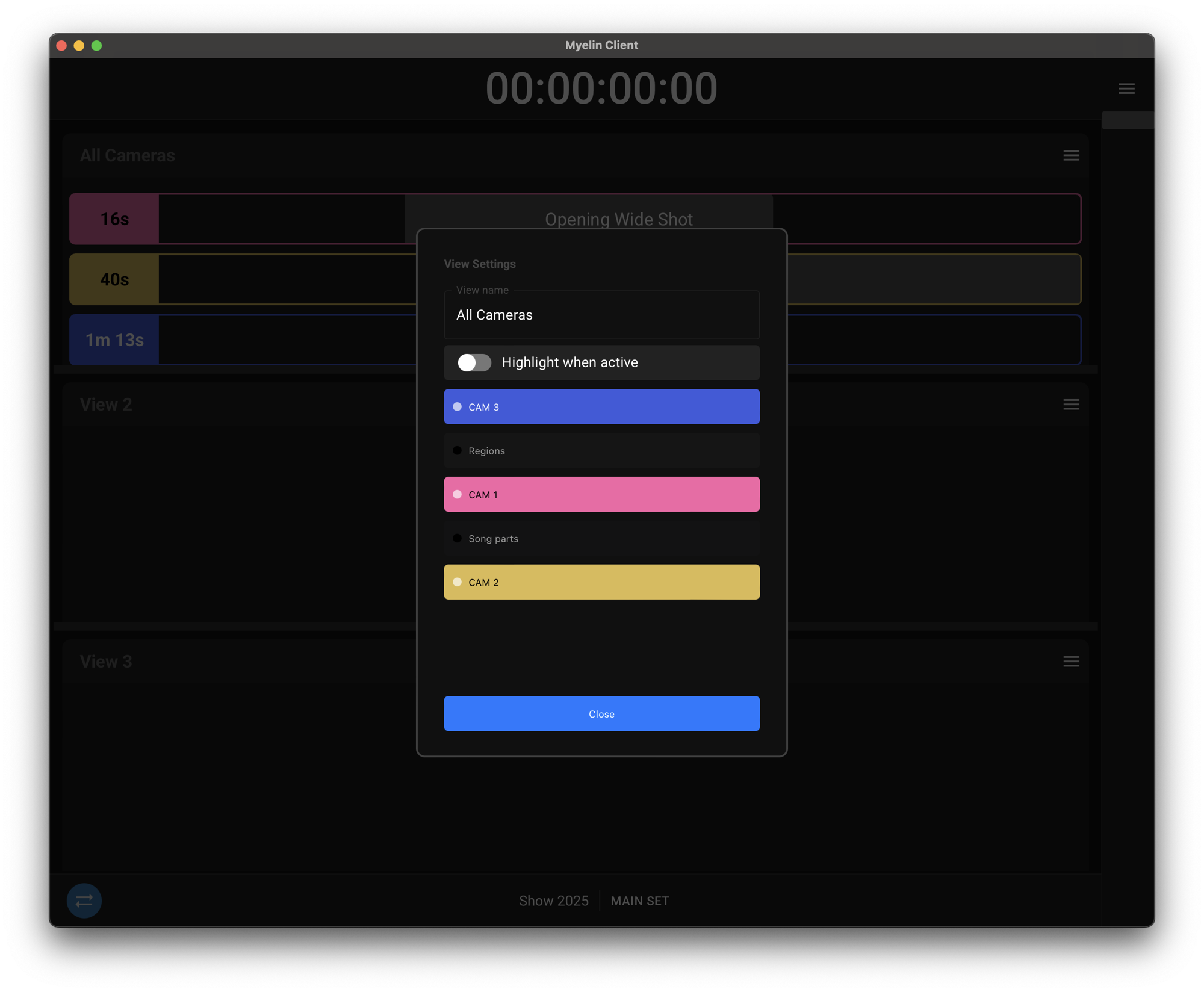
In view 2, we to show notes of our camera of interest, and enable 'Highlight when active', to show a red indicator when the camera of interest is on air. We rename the view to 'CAM 2'.

In view 3, we will display the notes on the 'Song parts' track, completing the setup of the views.

The views can be resized.

By clicking the 3 bars icon at the top right of the windows, we can open the general settings.

Here we find several options:
- Show Slider: we can choose whether or not to show the slider, that lets us scroll through the set manually
- Timecode clock size
- Countdown mode
- Absolute: countdown to every note individually
- Relative: countdown to the first upcoming note, show the delta between the later notes
- Views
- Choose which views should be displayed
- Vertical/Horizontal stacked: choose whether the views should be horizontally next to each other, or vertically under each other
- Note size
When there is not enough room to show all enabled views, the view with the highest number will not be shown.
When we are satisfied with our configuration, we close the settings overlay.
The Project selector button is only available when running the native Myelin Client apps. Clicking it takes you back to the session selector.
Playing back in Myelin Director will start the clock running in Myelin Client, turning the synchronization button green.

Clicking the button or manually selecting a different set disables live sync.
The color of the synchronization button indicates Myelin Director and Myelin Client's current state:
| Color | Meaning |
|---|---|
| Blue | Live sync enabled, paused |
| Green | Live sync enabled, playing |
| Orange | Live sync disabled, playing |
| Grey | Live sync disabled, paused |
| Red | Connection lost |
Changes made in Myelin Director are reflected live in Myelin Client.

