grandMA2
Myelin Director can be used to directly trigger events in grandMA2, such as executors, using MIDI. Information about how to do this, can be found here. You can also use Myelin Director to export timecode content into grandMA2. You will find an example for this usage in this documentation page.
Myelin Director can export two types of timecode data for grandMA2:
grandMA2 timecode .xml: The most convenient way to export and import timecode data into grandMA2, but not capable of creating sequences
grandMA2 plug-in .xml/.lua combination: A plug-in that imports the timecode data, but can create sequences and cue stacks as well
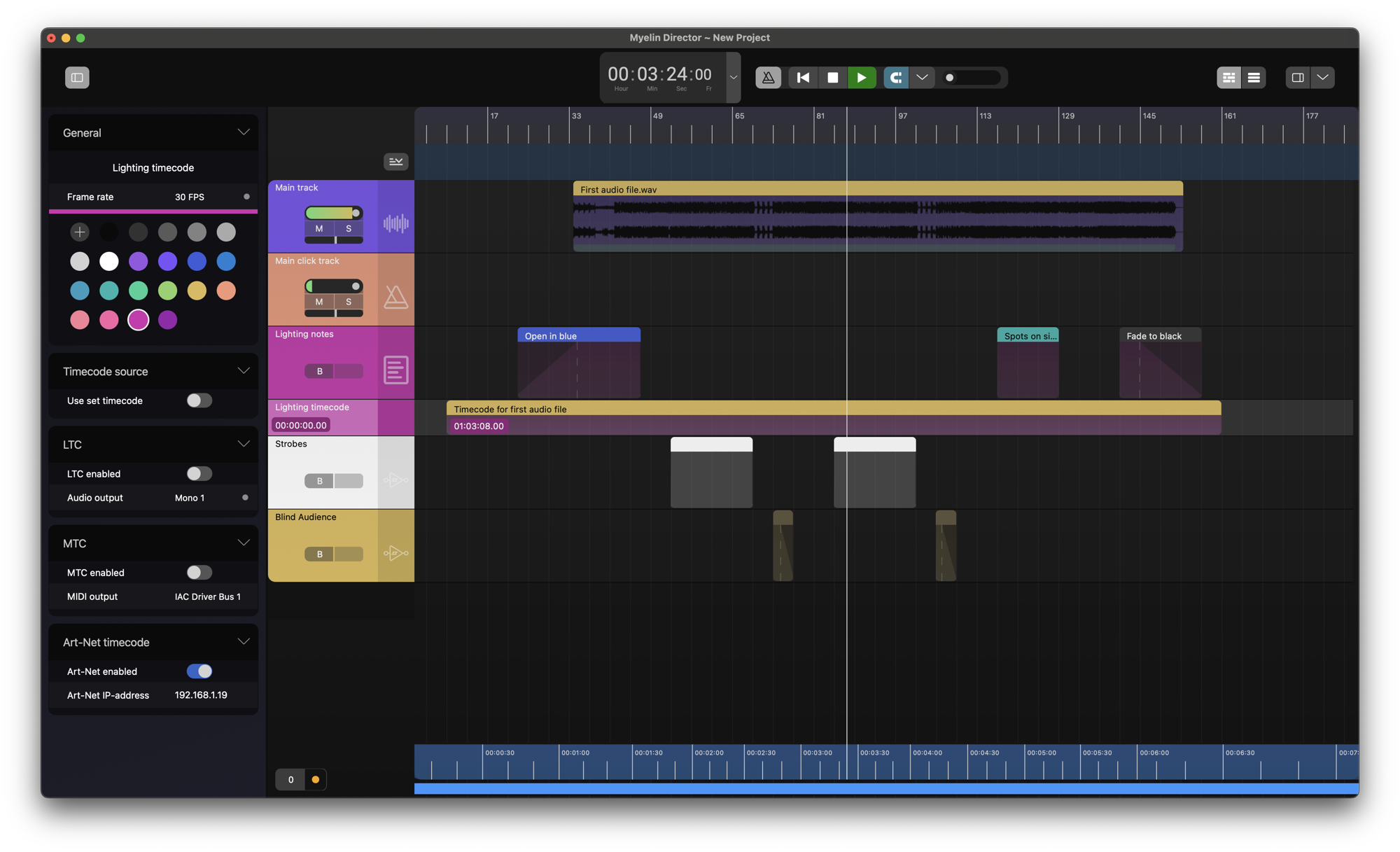
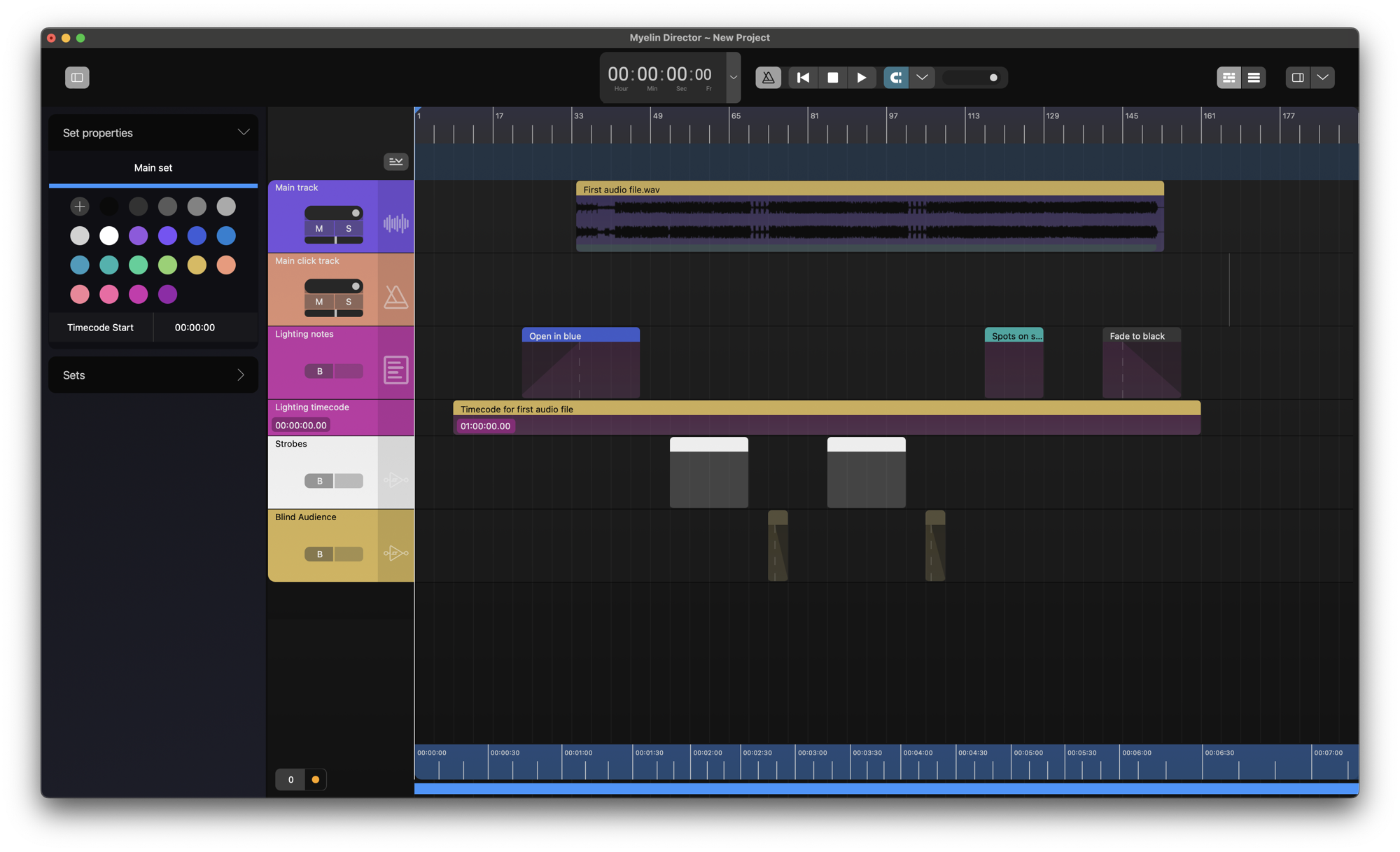
We start with a project containing an audio, click, note, timecode, and 2 trigger tracks.
And a basic project in grandMA2, with just 10 fixtures of the same type, and 2 executors:
- Strobes
- Blind Audience

grandMA2 does not support marker data. We therefore export our marker data as a cue stack. We create two regions indicating the moment in the show.

We want the 'Strobes' and 'Blind Audience' executors to be triggered at the times of triggers on the 'Strobes' and 'Blind Audience' tracks in Myelin. We also want to turn our 'Lighting notes' track into a cue stack to be used in grandMA2. We therefore rename the track to 'Lighting cue stack'.

We can now open the grandMA2 exporter, by clicking [File] -> [Export] in the menu bar, and selecting the grandMA2 tab.
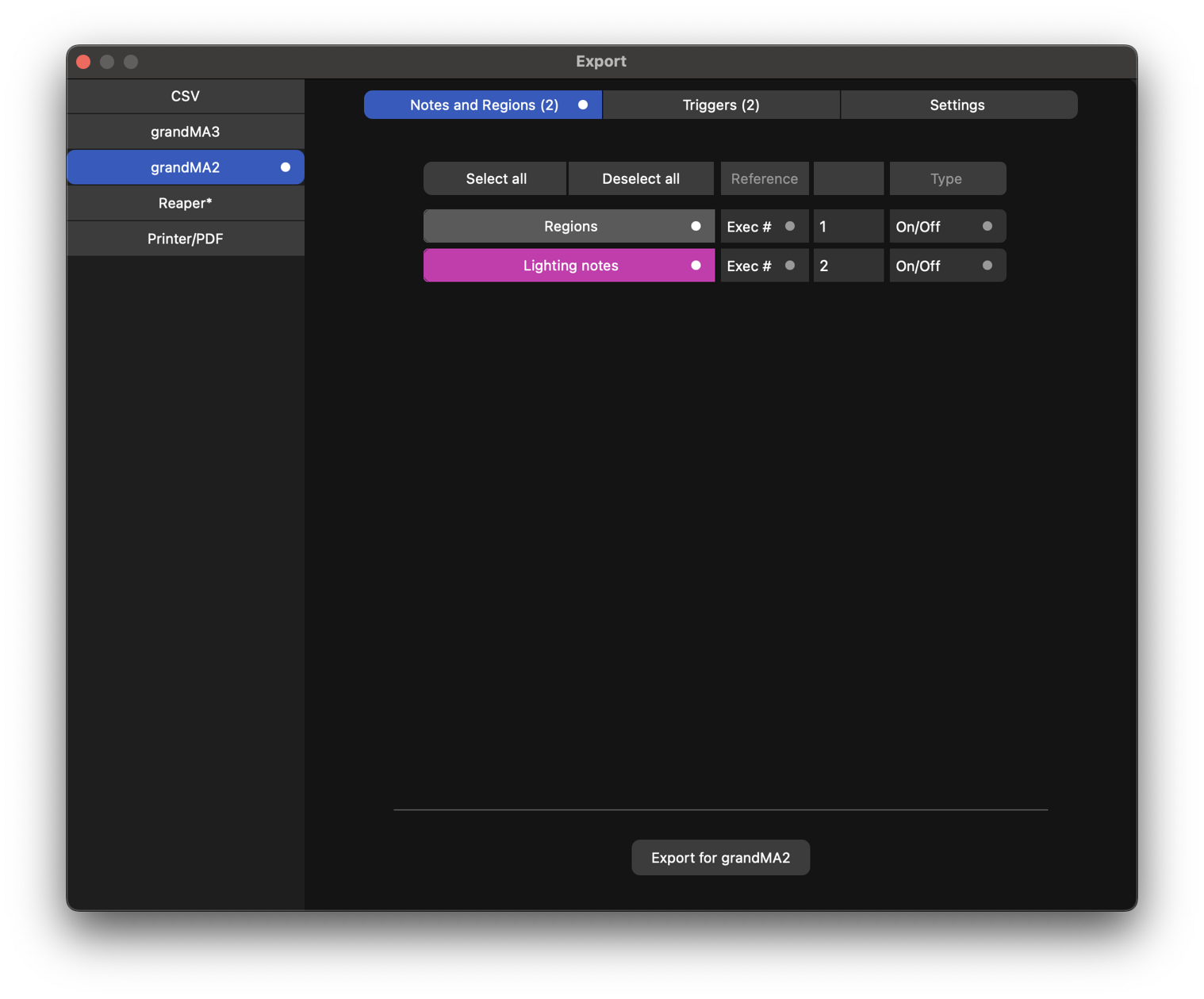
In the 'Notes and Regions' tab you will find the regions track and all notes tracks. You enable/disable the export of the track by clicking the track's button.
For every track we want to export, we need to set an executor number. That will be the executor in grandMA2 that will be used to refer to the data of the track.
You can choose what type of events in grandMA2 should be represented by the events on the Myelin tracks. Every segment on the track represents the chosen type in grandMA2:
-
Go: Go to the next cue. Fade in with the fade in time specified for the segment.
-
Goto: Go to a specific cue; grandMA2 will not automatically detect the cue it should refer to. You will have to set that after import manually. Fade in with the fade in time specified for the segment.
If this type is chosen in combination with an export mode that creates sequences and cue stacks, and the track is a note or region track, only one cue will be created per segment name, since multiple timecode events can Goto the same cue.
-
On: Turn on the executor. Fade in with the fade in time specified for the segment.
-
On/Off: Turn on the executor at the start of the segment, turn off the cue at the end of the segment.. Fade in with the fade in time specified for the segment. Fade out with the fade out time specified for the segment.
In this example, we choose Go for both the Regions and the 'Lighting cue stack'. We set their executor numbers to 1 and 2, respectively.

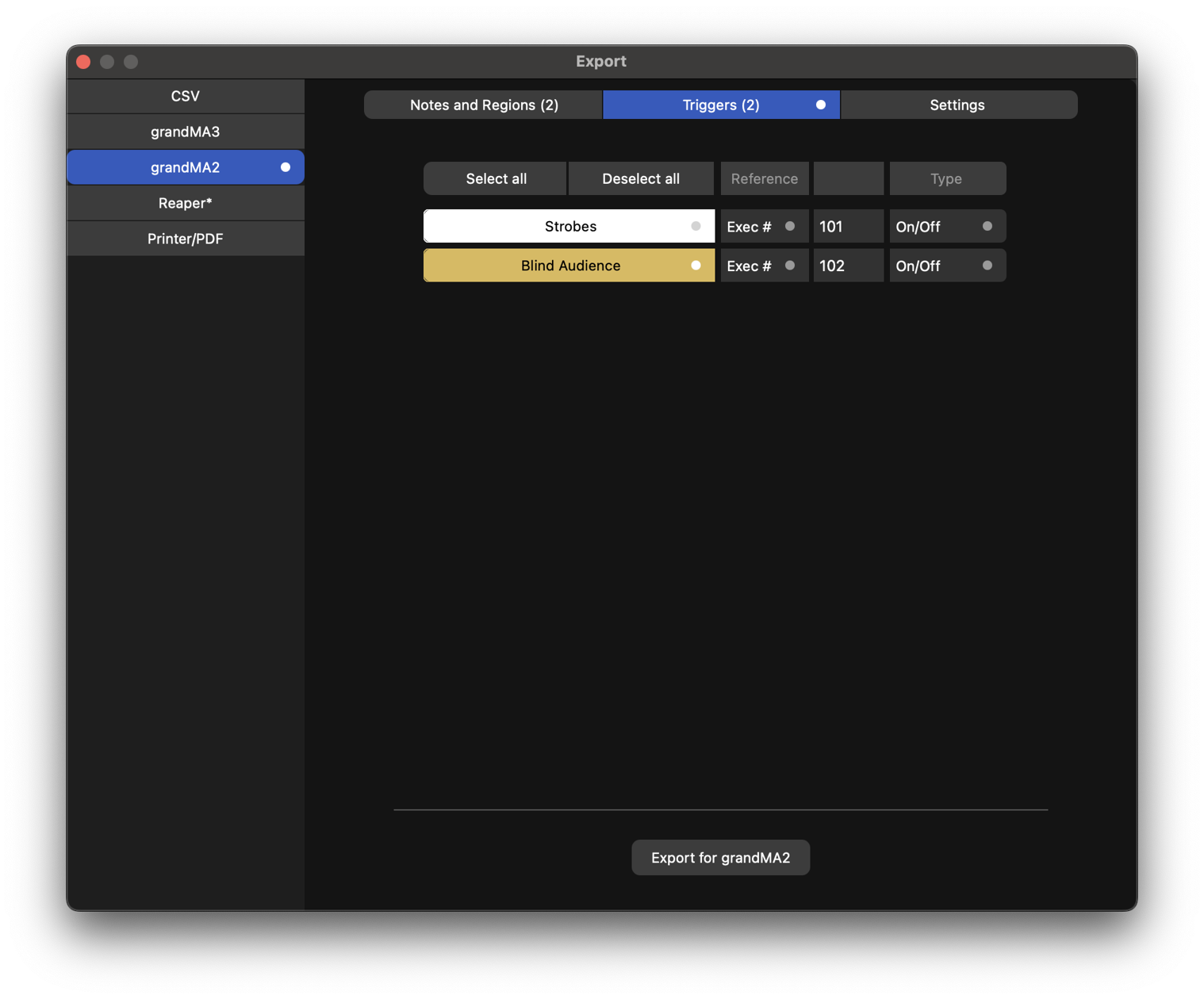
We continue to the Triggers track tab. In this example, we choose On/Off for the 'Strobes' and 'Blind Audience' tracks. We set their executor numbers to 101 and 102, respectively.
We continue to the Settings track tab. Here we can choose whether to filter on regions. We can also choose what timecode the export should reference. If you choose a timecode track, the exported items will be relative to the current timecode on that track. If there is no timecode segment present at the time of the item, the item will not be exported. In this example, we choose to filter on the two regions in the project, and choose the 'Lighting timecode' track as our timecode source.

We have three options whether or not to enable sequence and cue stack generation:
-
Do not create sequences: Export a grandMA2 timecode .xml. This timecode .xml can be imported straight into a timecode pool slot in grandMA2 and will match the events to the corresponding executor numbers if they are present.
-
Create sequences if non existing: Export a grandMA2 plugin .xml/.lua combination. This LUA plug-in can be imported straight into a grandMA2 plug-in slot using the .xml. Afterwards, you can run the plug-in, and choose what timecode pool slot the timecode should be imported to. If executors with the used executor number are not present in the project, the plug-in will create them, and import the executor and cue colors as well. Timecode is imported in the same way as using the Do not create sequences option.
-
Create sequences, overwrite existing: The same as Create sequences if non existing, except for the fact that this option will overwrite existing sequences if the referenced executor is already present in the project.
In this example, we choose to Create sequences if non existing.
We can choose whether to [Store as default]. If this button is enabled, the configuration for the grandMA2 exporter, including the track options, is stored, and loaded as the default for upcoming exports.
We click [Export for grandMA2], choose a location and file name, and click [Save]. In this example, we name the file 'Myelin MA2'.
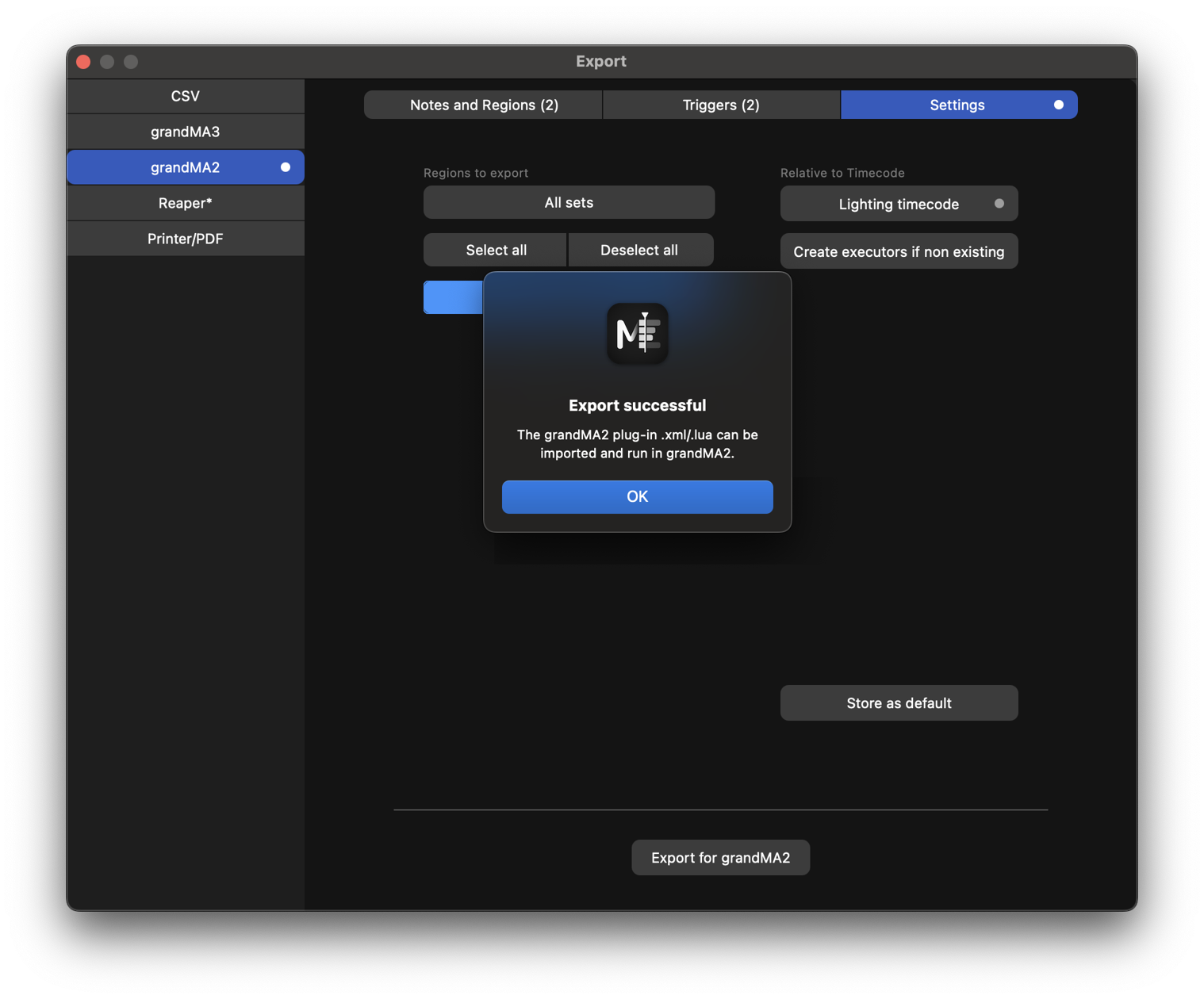
Since we chose Create sequences if non existing, an .xml/.lua plug-in combination has been exported. We can now import this plug-in into grandMA2. The .xml/.lua plug-in has to be copied into ~/importexport. In grandMA2, we can then import the plug-in, by editing a new Plugin pool slot.
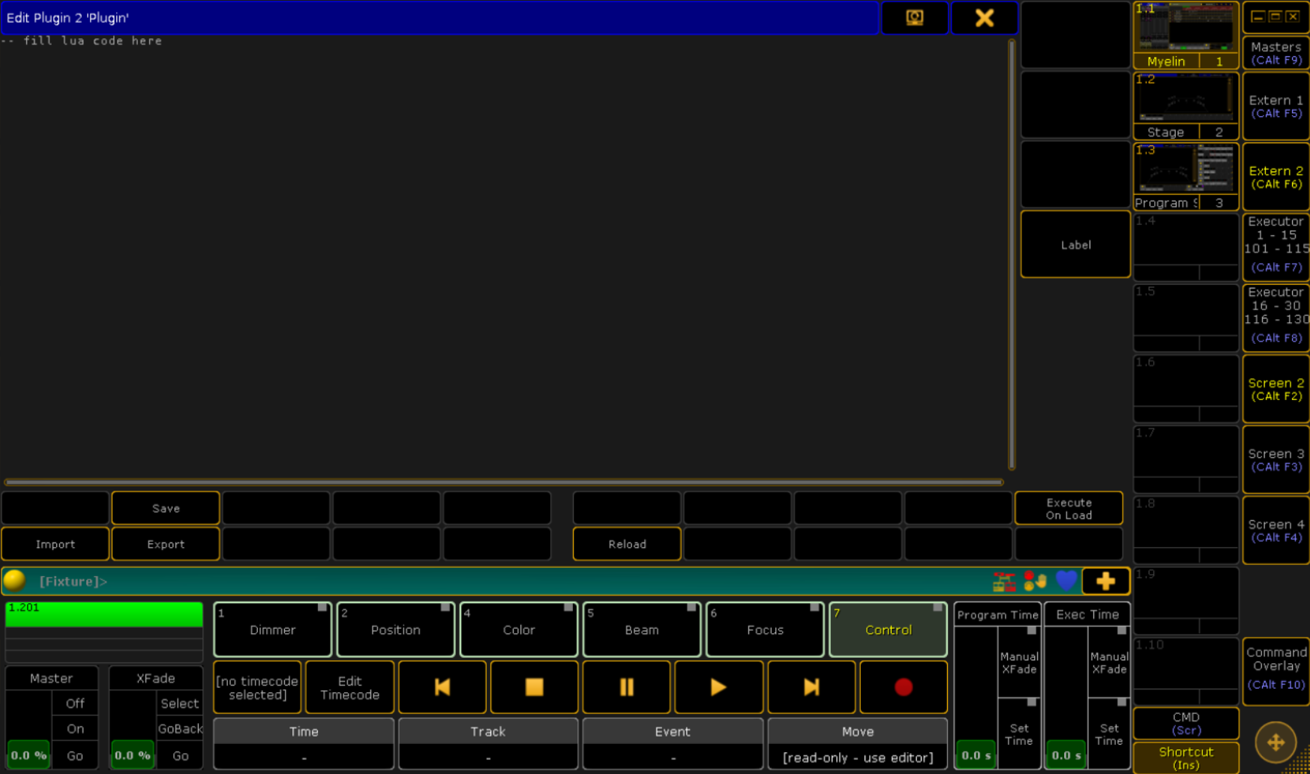

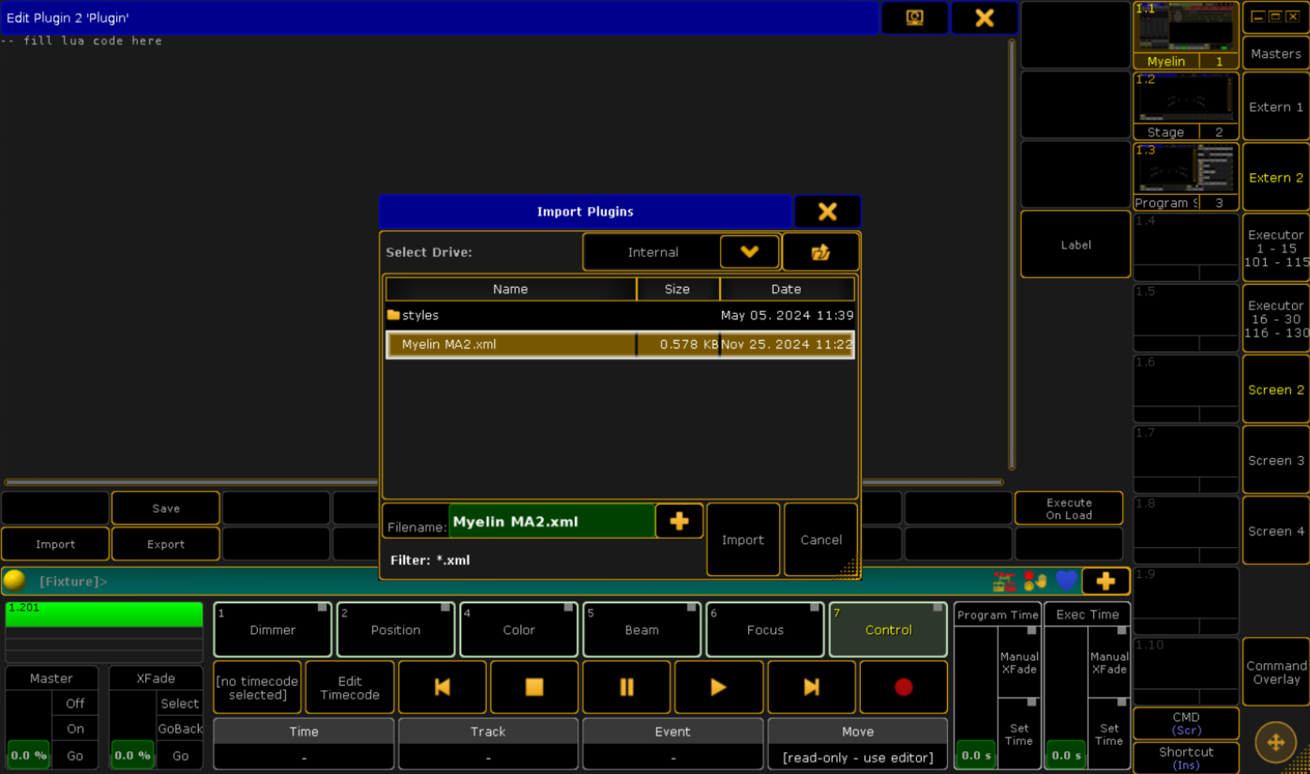

We now find the plug-in in the Plugin pool.

We now click on the 'Myelin MA2' plug-in.
We are prompted with an input dialog, where we can enter the timecode pool slot number, that we import the timecode into. We choose 1 and click 'Please'.

The executors that weren't present in the project are created ('Regions' and 'Lighting cue stack'), and the timecode is imported.

If we select the 'Myelin MA2' timecode, we can see that the 4 timecode tracks are successfully imported. The events have the chosen targets and tokens. If we display the timecode table, we observe that the fade times, as defined in Myelin have been imported as well.
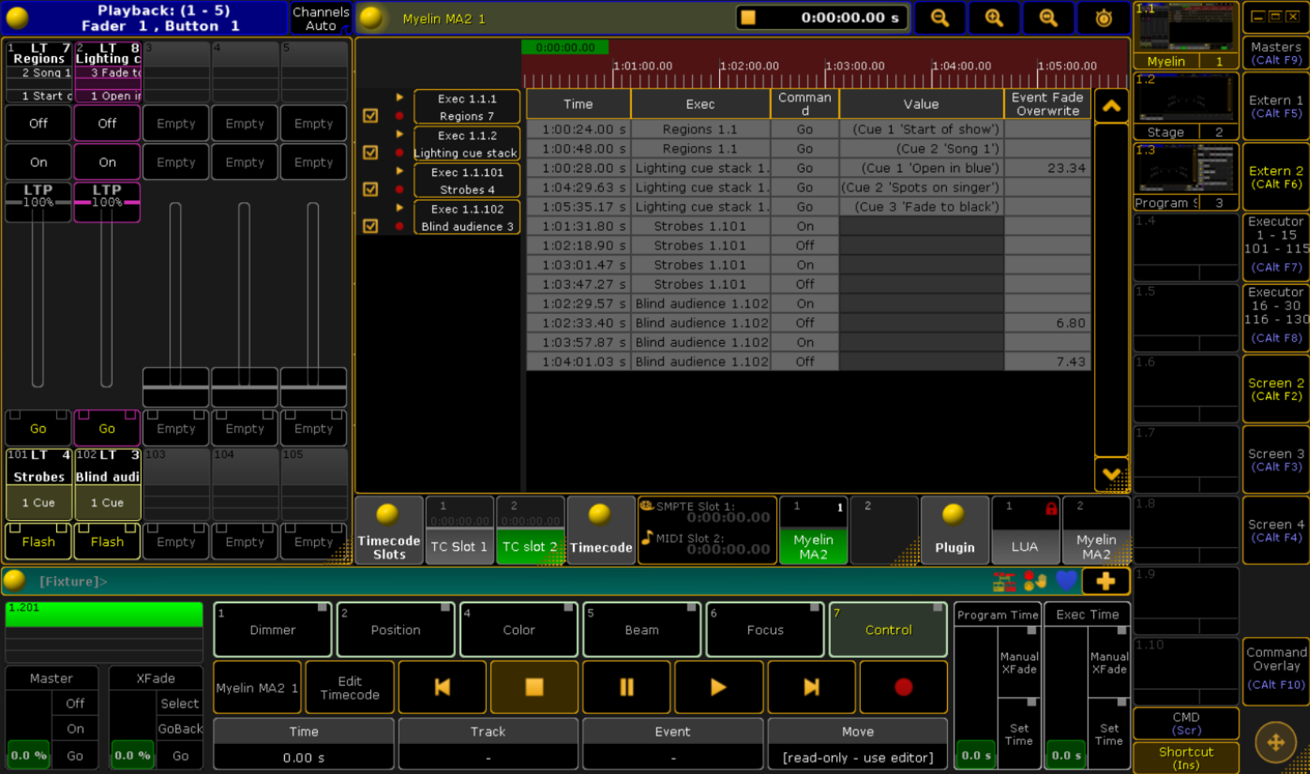
Since we chose Create sequences if non existing, sequences 'Strobes' and 'Blind Audience' have not been recreated, and their appearance hasn't changed. The sequence 'Lighting cue stack' has been created, and its appearance is applied.

The cues in the 'Lighting cue stack' can be filled with the desired content.
We can now configure the timecode to playback. In this example, we are going to use 'TCSlot 1'. We click on the yellow ball button at the top left of the timecode viewer, and select 'TCSlot 1' as our Slot.
You can use the 'Intern' slot to playback the timecode by using the transport control buttons at the bottom of the timecode viewer.
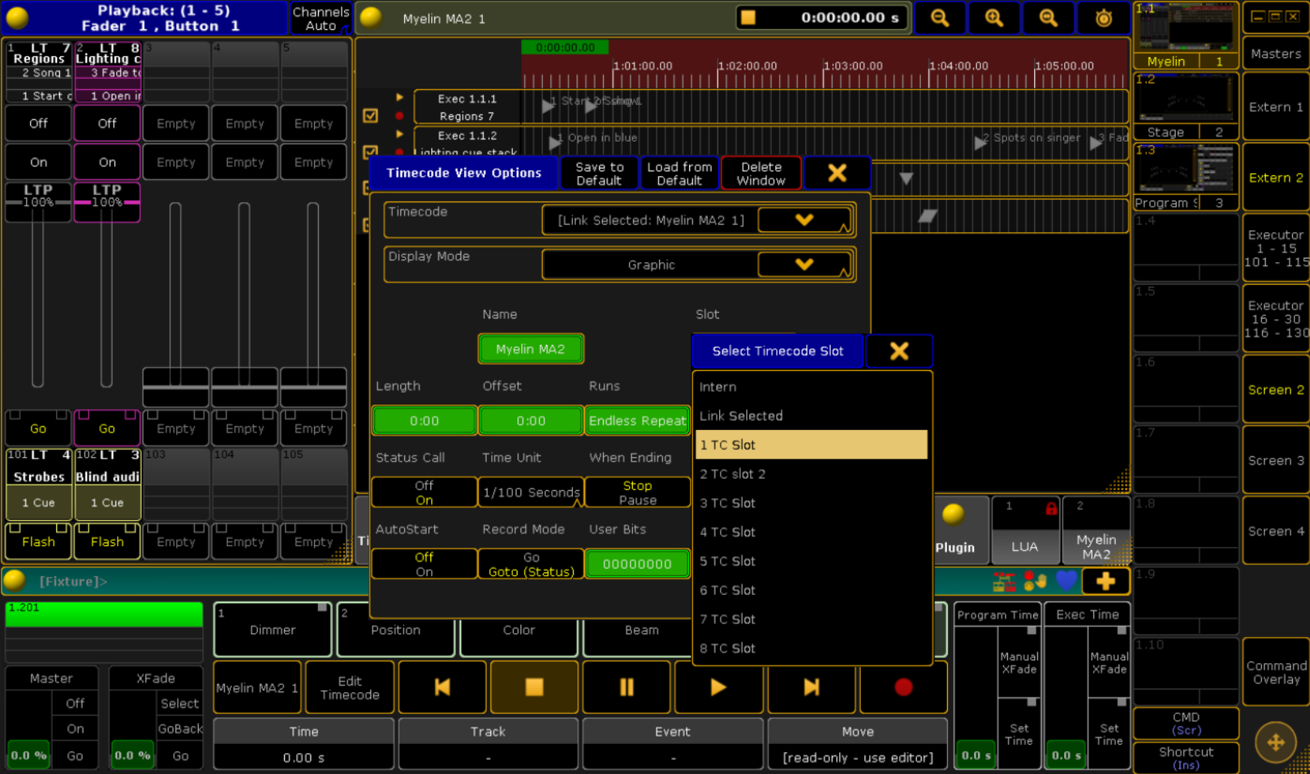
We now have to configure 'TCSlot 1' to receive our timecode. In this example, we are going to use MIDI timecode, on a onPC setup. We have loopMIDI installed and have configured a virtual MIDI port. Myelin Director is running on a different computer in the network. There are various ways to get timecode from Myelin on one computer to a grandMA2 onPC setup. In this example, we use Timecode Expert to be an Art-Net timecode bridge between Myelin Director and the virtual MIDI port.
Please refer to the grandMA2 manual for more information on how to setup different timecode routings.
We configure a virtual MIDI port in loopMIDI.

We set the 'TC MIDI' port to be our MIDI input in grandMA2 onPC.


We go into Setup -> MA Network Configuration -> onPC and set the MIDI TC of our onPC to use 'TC Slot 1'.

We configure Timecode Expert to take Art-Net from the local network and send MIDI timecode to the 'TC MIDI' MIDI port.

In grandMA2, we click the play button in the timecode viewer, and head back to in Myelin.
In Myelin Director, we have to make sure that the 'Lighting timecode' timecode track has Art-Net output to IP-address 192.168.1.19 enabled.
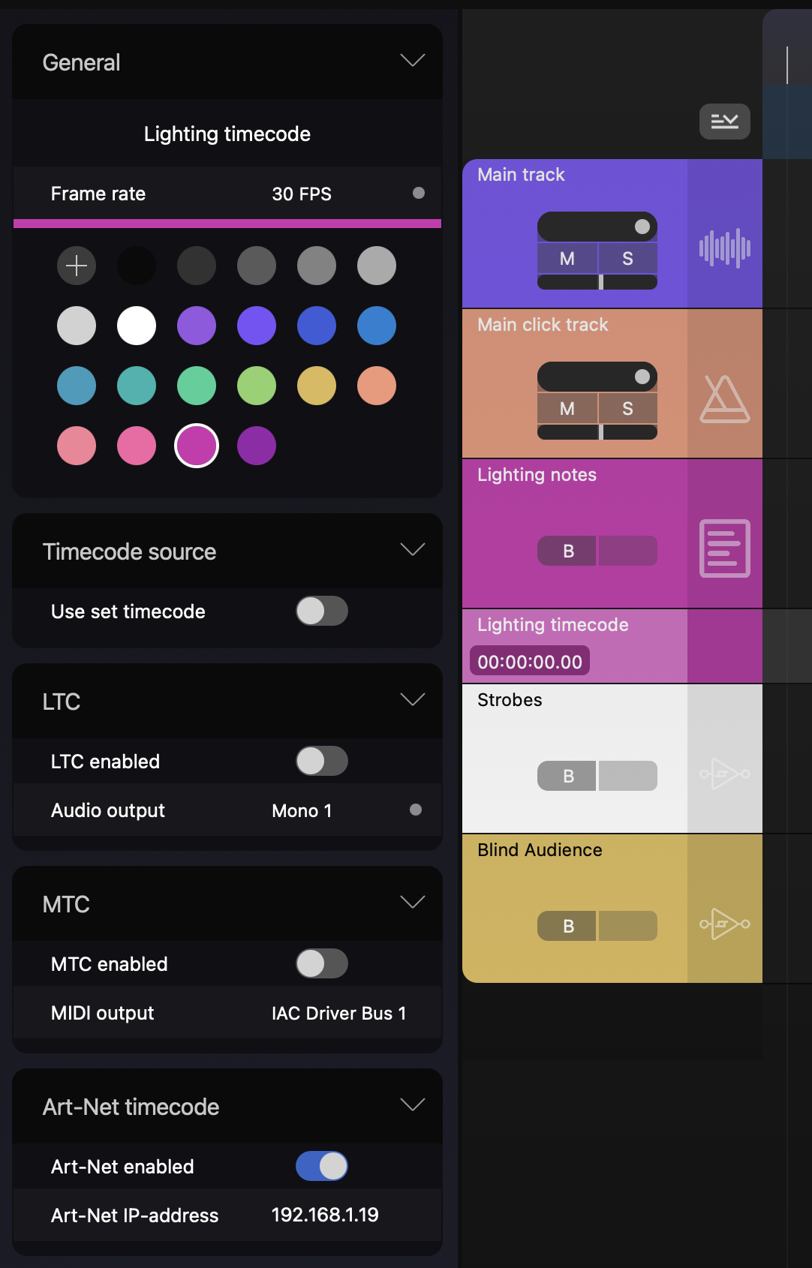
We can now start playback in Myelin, and timecode in GrandMA2 should follow, and the cues should fire in sync with their Myelin source segment.